

- Mark as New
- Bookmark
- Subscribe
- Mute
- Subscribe to RSS Feed
- Permalink
- Report Inappropriate Content
4 weeks ago (Last edited 3 weeks ago ) in
Fold & Flip PhonesSolved! Go to Solution.
1 Solution
Accepted Solutions

 Samsung_Moderat
- Mark as New
- Bookmark
- Subscribe
- Mute
- Subscribe to RSS Feed
- Permalink
4 weeks ago in
Fold & Flip PhonesHey Honeygeex3! Thanks for visiting the Community! I know this recent purchase must have been exciting, and it will be my pleasure to help keep it that way.
Download updates manually.
- On your device, navigate to and open Settings.
- Swipe to and tap Software update or System updates. It will vary between models.
- Tap Download and install or Check for software updates. If an update is available it will begin downloading, though you may need to tap Download now on some devices.
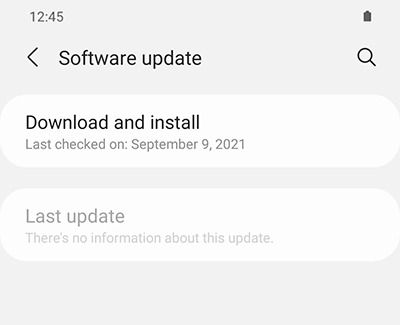
- When the download is complete, follow the on-screen instructions to install the update.
You can also check for updates using Smart Switch.
Make sure your device has enough space.
- Make sure the phone or tablet is connected to the internet and charged to at least 50% before installing a software update.
- Some carriers require a Wi-Fi network connection and will not allow you to update using mobile data.
- If an error occurs during a software update and your phone or tablet keeps restarting, learn how to get out of a boot loop.
- If your phone or tablet doesn't have enough storage space, you can clean up your storage with Device care. You can also back up extra files using Smart Switch or your Samsung or Google account.
Check your phone or tablet after the update.
If you were having issues before the software update, use the phone or tablet normally to check if the problem has been solved.
Learn about Safe mode.
Certain downloaded apps can make your phone or tablet freeze, crash, or lag. Some apps can even affect camera functionality, cause audio issues, and affect network connectivity.
Using Safe mode disables all downloaded apps and loads only the original software that came with your phone or tablet, allowing you to determine if the issue is caused by an app or with the device itself.
If the issues do not appear while in Safe mode, the problem is caused by a downloaded app, and it should be uninstalled.
Reboot the phone or tablet in Safe mode.
First, open the Power menu:
- On devices with a regular Power button, press and hold the Power button until the Power menu is displayed.
- On devices without a dedicated Power button, swipe down from the top right of the screen to open the Quick settings panel. Tap the Power icon at the top of the screen.
Touch and hold Power off until the Safe mode icon is displayed. Tap Safe mode to start your device in Safe mode. If you've entered Safe mode successfully, you'll see “Safe mode” displayed at the bottom of the screen.
Check if the phone or tablet is still having the same problem.
Use the phone or tablet normally to see if the issue has been resolved. If the phone or tablet is operating normally, a recently installed app was most likely causing the issue.
- If the issue is gone in Safe mode: One of your recently downloaded apps was likely the cause of the problem. Proceed to Step 4.
- If the issue still exists: Downloaded apps may not be the cause of the problem. You may need to reset the phone or tablet to its factory setting.
Uninstall apps.
One by one, uninstall any apps you downloaded just before your phone or tablet began having the issue.
From your Home screen, swipe up to open the App drawer. Find the app you want to remove, and then touch and hold the app's icon until a popup menu appears. Tap Uninstall, and then tap OK to confirm.
After uninstalling each app, exit safe mode and check for normal operation.
After you uninstall the app that caused the issue, you can reinstall the other safe apps you just deleted.
Exit Safe mode.
First, open the Power menu:
- On devices with a regular Power button, press and hold the Power button until the Power menu is displayed.
- On devices without a dedicated Power button, swipe down with two fingers from the top of the screen to open the Quick settings panel. Tap the Power icon at the top of the screen.
Tap Power off to turn off the device. Wait until the phone or tablet completely turns off, and then press the Power button again to turn it on. Check if the issue has been resolved.
Prepare your phone or tablet for reset.
-
Make sure to back up your phone or tablet. All data and settings will be erased.
-
Write down the username and password for the account that you used to back up your data.
-
We recommend having your phone or tablet plugged into the wall charger during the reset process because it may take up to an hour.
-
If you have encrypted the SD Card inserted in to your phone or tablet, make sure to decrypt it before the reset. Navigate to Settings, search for and select SD, and then tap Decrypt SD card.
Perform the reset.
Set up the device.
Test the device.
Before installing any apps, make sure that your phone or tablet is functioning normally.
If you are still encountering any issues, please visit a Samsung walk-in service center or you can schedule a repair service online.
Be sure to click " ✓ Accept as Solution" when you find an answer that works for you.
Please note, notification emails are a DO NOT REPLY address, you must log-in on the community page in order to respond.

- Mark as New
- Bookmark
- Subscribe
- Mute
- Subscribe to RSS Feed
- Permalink
- Report Inappropriate Content
4 weeks ago in
Fold & Flip Phones
- Mark as New
- Bookmark
- Subscribe
- Mute
- Subscribe to RSS Feed
- Permalink
- Report Inappropriate Content
4 weeks ago in
Fold & Flip Phones
- Mark as New
- Bookmark
- Subscribe
- Mute
- Subscribe to RSS Feed
- Permalink
- Report Inappropriate Content
4 weeks ago in
Fold & Flip Phones
Samsung_Moderat- Mark as New
- Bookmark
- Subscribe
- Mute
- Subscribe to RSS Feed
- Permalink
4 weeks ago in
Fold & Flip PhonesHey Honeygeex3! Thanks for visiting the Community! I know this recent purchase must have been exciting, and it will be my pleasure to help keep it that way.
Download updates manually.
- On your device, navigate to and open Settings.
- Swipe to and tap Software update or System updates. It will vary between models.
- Tap Download and install or Check for software updates. If an update is available it will begin downloading, though you may need to tap Download now on some devices.
- When the download is complete, follow the on-screen instructions to install the update.
You can also check for updates using Smart Switch.
Make sure your device has enough space.
- Make sure the phone or tablet is connected to the internet and charged to at least 50% before installing a software update.
- Some carriers require a Wi-Fi network connection and will not allow you to update using mobile data.
- If an error occurs during a software update and your phone or tablet keeps restarting, learn how to get out of a boot loop.
- If your phone or tablet doesn't have enough storage space, you can clean up your storage with Device care. You can also back up extra files using Smart Switch or your Samsung or Google account.
Check your phone or tablet after the update.
If you were having issues before the software update, use the phone or tablet normally to check if the problem has been solved.
Learn about Safe mode.
Certain downloaded apps can make your phone or tablet freeze, crash, or lag. Some apps can even affect camera functionality, cause audio issues, and affect network connectivity.
Using Safe mode disables all downloaded apps and loads only the original software that came with your phone or tablet, allowing you to determine if the issue is caused by an app or with the device itself.
If the issues do not appear while in Safe mode, the problem is caused by a downloaded app, and it should be uninstalled.
Reboot the phone or tablet in Safe mode.
First, open the Power menu:
- On devices with a regular Power button, press and hold the Power button until the Power menu is displayed.
- On devices without a dedicated Power button, swipe down from the top right of the screen to open the Quick settings panel. Tap the Power icon at the top of the screen.
Touch and hold Power off until the Safe mode icon is displayed. Tap Safe mode to start your device in Safe mode. If you've entered Safe mode successfully, you'll see “Safe mode” displayed at the bottom of the screen.
Check if the phone or tablet is still having the same problem.
Use the phone or tablet normally to see if the issue has been resolved. If the phone or tablet is operating normally, a recently installed app was most likely causing the issue.
- If the issue is gone in Safe mode: One of your recently downloaded apps was likely the cause of the problem. Proceed to Step 4.
- If the issue still exists: Downloaded apps may not be the cause of the problem. You may need to reset the phone or tablet to its factory setting.
Uninstall apps.
One by one, uninstall any apps you downloaded just before your phone or tablet began having the issue.
From your Home screen, swipe up to open the App drawer. Find the app you want to remove, and then touch and hold the app's icon until a popup menu appears. Tap Uninstall, and then tap OK to confirm.
After uninstalling each app, exit safe mode and check for normal operation.
After you uninstall the app that caused the issue, you can reinstall the other safe apps you just deleted.
Exit Safe mode.
First, open the Power menu:
- On devices with a regular Power button, press and hold the Power button until the Power menu is displayed.
- On devices without a dedicated Power button, swipe down with two fingers from the top of the screen to open the Quick settings panel. Tap the Power icon at the top of the screen.
Tap Power off to turn off the device. Wait until the phone or tablet completely turns off, and then press the Power button again to turn it on. Check if the issue has been resolved.
Prepare your phone or tablet for reset.
-
Make sure to back up your phone or tablet. All data and settings will be erased.
-
Write down the username and password for the account that you used to back up your data.
-
We recommend having your phone or tablet plugged into the wall charger during the reset process because it may take up to an hour.
-
If you have encrypted the SD Card inserted in to your phone or tablet, make sure to decrypt it before the reset. Navigate to Settings, search for and select SD, and then tap Decrypt SD card.
Perform the reset.
Set up the device.
Test the device.
Before installing any apps, make sure that your phone or tablet is functioning normally.
If you are still encountering any issues, please visit a Samsung walk-in service center or you can schedule a repair service online.
Be sure to click " ✓ Accept as Solution" when you find an answer that works for you.
Please note, notification emails are a DO NOT REPLY address, you must log-in on the community page in order to respond.
- Mark as New
- Bookmark
- Subscribe
- Mute
- Subscribe to RSS Feed
- Permalink
- Report Inappropriate Content
3 weeks ago in
Fold & Flip Phones
